Automation Testing, Manual Testing, QTP/UFT 11 , QC/ALM 11 ,SAP TAO, Unix, Selenium, Oracle SQL, Shell Scripting and For Online Trinings to contact me : Cell:+91-8897972059 , Email Id : quicktestprotech@gmail.com

Tuesday, May 6, 2014

HP UFT Add-in information

About the Unified Functional Testing Add-in

The Unified Functional Testing Add-in integrates ALM and Quality Center with Unified Functional Testing (UFT), enabling you to do the following using Quality Center or ALM:
  • Create UFT GUI tests and add them to the test plan tree
  • View UFT tests
  • View UFT test or component resources (such as object repositories, function libraries, and data sheets)
  • View and compare details of selected UFT test and resource versions
  • Launch and edit UFT tests (if UFT is installed on the same machine)
  • View UFT test run results and reports

Note for Windows 8 users: The first time you use UFT, you must run UFT in administrator mode.

It is also recommended that you check your HPSU application (automatically installed with UFT) for any updates to the UFT Add-in for Quality Center/ALM.

Note: The functionality provided by the Unified Functional Testing Add-in is included in the Unified Functional Testing for Business Process Testing Add-in. If you have already installed the Unified Functional Testing for Business Process Testing Add-in on your ALM or Quality Center client machine, you do not need to install this add-in.

Unified Functional Testing 12.00 Add-in for Quality Center/ALM

  1. Install UFT on your HP ALM client machine. (This optional step enables you to launch and edit tests from HP ALM.)
  2. Uninstall any previous versions of this add-in. To uninstall, choose Start > Settings > Control Panel > Add/Remove Programs and follow the instructions on your screen.
  3. If you are installing the add-in on an HP ALM client machine and UFT is not install on the same machine, you must install the following (click the link to download):
  4. If you are using the UFT 12.00 Add-in for ALM with ALM 11.52 or earlier, you must ensure that the Visual C++ 2005 Redistributable Package is on your computer. You can download this package from http://www.microsoft.com/en-us/download/details.aspx?id=5638..
  5. Click the Download UFT 12.00 Add-in link to download and install this add-in on your client machine. Note that to install this add-in, you must log in with administrative privileges.

Quality Center/ALM Versions supported
HP Application Lifecycle Management 11.00 and Quality Center 11.00 and higher.
Note: ALM 12.00 support is compatible only with the UFT 12.00 Add-in for ALM.


Unified Functional Testing 11.53 Add-in for Quality Center/ALM

Installation Instructions

  1. Install the Unified Functional Testing 11.50 Add-in for Quality Center, as described below.
  2. Install the Unified Functional Testing 11.53 Patch for the Unified Functional Testing Add-in for Quality Center. Follow the on-screen instructions to install the patch.

Quality Center/ ALM Versions Supported
HP Quality Center 10.00, HP Application Lifecycle Management 11.00 and higher


Unified Functional Testing 11.50 Add-in for Quality Center/ALM

Installation Instructions

  1. Install UFT on your HP ALM client machine. (This optional step enables you to launch and edit tests from HP ALM.) 
  2. Uninstall any previous versions of this add-in. To uninstall, choose Start > Settings > Control Panel > Add/Remove Programs and follow the instructions on your screen.
  3. Make sure that the .NET Framework 4.0 and .NET Framework 3.5 SP1 is installed (available from Microsoft Windows Update).
  4. If you are installing the add-in on an HP ALM client machine and UFT 11.50 is not installed on the same machine, you must install the following from Microsoft Windows Update
    • .NET Framework 3.5 SP1
    • Windows Installer 3.1
    • Windows Imaging Component
    • Visual Studio Tools for Office System 3.0 Runtime
    • Visual C++ 2005 Service Pack 1 Redistributable Package
    • Visual C++ 2008 Redistributable Package 
  5. Click the Download UFT 11.50 Add-in link to download and install this add-in on your client machine. Note that to install this add-in, you must log in with administrator privileges.
  6. Install the appropriate HP ALM Connectivity Add-in on your HP ALM client machine. For more information, refer to the HP Application Lifecycle Management Add-ins page.
 
Quality Center/ ALM Versions Supported
HP Quality Center 10.00, HP Application Lifecycle Management 11.00 and higher

Localized Versions of the UFT 12.00 Add-in for ALM

When you install the UFT 12.00 Add-in for ALM on a computer with a localized operating system, you can select whether to install the Add-in the language of your operating system (if supported) on in English.
The UFT 12.00 Add-in for ALM supports the following languages:
  • Chinese
  • German
  • Spanish
  • French
  • Italian
  • Japanese
  • Korean
  • Brazilian Portoguese
  • Russian
  • Dutch

For installation instructions, see the instructions above for installing the UFT 12.00 Add-in for ALM.


Localized Versions of the UFT Add-in for ALM

The UFT 11.50 Add-in for ALM is also available in multiple languages.
To install, you must download both the add-in and the appropriate language pack.
Click the appropriate link to download:


For installation instructions, see the instructions for installing the UFT 11.50 Add-in for ALM above.

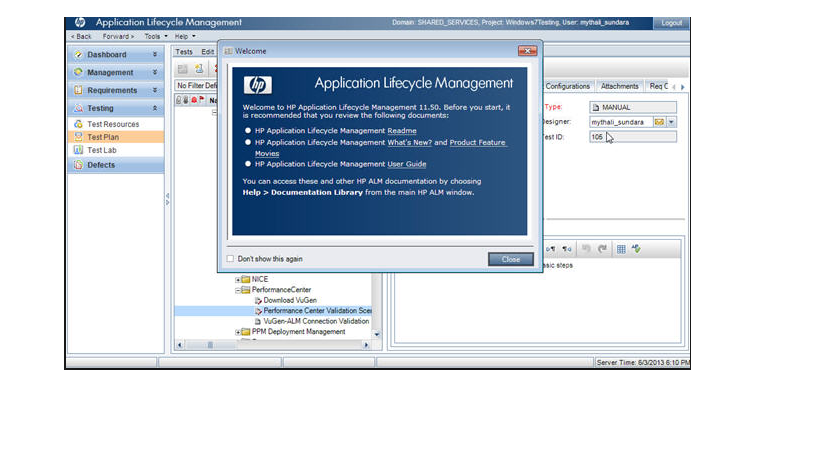
Tuesday, April 22, 2014

ALM and QC Enterprise 12.00

ALM and QC Enterprise 12.00


Introducing a New Web Client
The new web client for ALM and QC has been built on HTML5/JavaScript technology and does not have any ActiveX components. Requirements Management and Defects Management are the two modules that have been completely redesigned as part of this release. This client is browser agnostic and can be accessed via Chrome, Firefox, Internet Explorer and Safari. In addition, users can now use Linux, Windows 8, and Mac to access this new client.

The Requirements module on the new web client adds some new exciting features:
  • The ability to author multiple requirements as part of a single document view
  • An enhanced rich text editor with Word-like interface
The Defects module on the new web client:
  • Provides a simple and intuitive interface to log defects
Key user experience features:
  • The ability to tag, sort, and filter entities
  • Easy navigation with breadcrumb navigation
New Look and Feel on Existing Client
The existing client gets a new look and feel and also contains several usability enhancements. Some of the key features enhanced include:
  • Clicking the attachment icon for an entity now lets you view the list of attachments for quicker access to attachments.
  • You can pin a requirement, test plan, or defect, to enable you to jump to that item, no matter which module you are in.
  • Zoom In and Zoom Out buttons have been added to the toolbar for rich content memo fields.
Seamless Identity Management
Version 12.00 also introduces a new capability to support enterprise identity management systems which includes support for single sign-on SSO authentication for SiteMinder. CAC (Common Access Card) a mandatory federal requirement for authentication is also supported in this release.
Cross Project Business View Excel Reports (ALM only)
Business View Excel reports can now be created with data from multiple projects. The data will be shown and sorted per project.
Lab Management (ALM only)
The new auto-extend functionality automatically extends the timeslot if resources are available, to allow all tests to finish. This functionality applies to functional test sets or build verification suites. The Lab Service can now be configured to work with a proxy server.
Business Process Testing
Version 12.00 features and enhancements include the following:
  • Testing manual Business Process Tests from a printout
  • Setting permissions for customizing Business Process Testing by group in site administration
  • Integration with Sprinter and improvements for integrating with UFT
  • Quality and performance improvements that affect the design and execution of Business Process Tests
Docs on Tap: New Mobile Access to References for Administrators
Certain reference information can now be accessed on mobile devices. This provides quick access to administrators "on the go."
ALM Help
An interactive glossary was added to the HP ALM Help, enabling you to see the definition of terms as you encounter them. The ALM web client Help includes a new look online Help with more focus on role-based methodologies, helping you get the most out of the web client’s Requirements and Defects modules.
ALM Assessment Tool
The ALM Assessment Tool is not yet available. When it is available this page will be updated with more information.
Supported Environments
For the supported and recommended system configurations for your server and client machine, refer to HP Software Support Online.
Integrations Matrix
ALM and QC Enterprise offer integration and synchronization solutions with HP and third-party tools. To integrate with other tools, you may need to install an add-in. Refer to the Integrations Matrix to verify that you are using a supported version of the tool.

HP Application Lifecycle Management 11.52

HP Application Lifecycle Management 11.52*


General Usability Enhancements
The ALM Options Window has an Open in Full Screen mode icon that opens ALM in Full Screen mode, allowing you to take advantage of the entire screen when using HP ALM.
Business View Excel Reports
ALM professionals can now easily slice and dice, shape and share any ALM data using the new Business Views Excel add-in. Once installed, the add-in appears as an additional tab in Excel, allowing you to populate worksheets based on ALM Business Views—without opening ALM, and to use the rich Excel toolset to view and analyze the data.
Project Planning and Tracking (PPT) Release Enhancements
When selecting content to be included in release scope items, you can now include defects that link to selected requirements, tests, and tests sets (and their associated test instances, runs, and run steps).
Administration Updates
Several new site configuration parameters were added, and some parameter names were changed.
Business Process Testing
New HP Application Lifecycle Management 11.52 features are also supported for Business Process Testing entities. In addition, business process tests and flows no longer use the BPT wrapper test mechanism when running with UFT 11.50.
Lab Management
Several enhancements were made to Lab Management. When running tests from functional test sets and build verification suites, you can use the Suggested Duration feature to set the duration of your test based on previous test executions. Updates were also made to HP ALM Lab service - with the Auto Login feature, you can configure Lab Service to automatically log in to the testing host to run a test. The version of Lab Service you are running can also be viewed in the Lab Management Testing Hosts grid.
An open source Jenkins plugin has been developed that enables you to trigger a server side execution (functional test set or build verification suite) as a Jenkins build step. The results are reported in Jenkins and in the ALM Test Runs module. Support for this open source plugin is provided by the Jenkins community. For download and documentation, go to: https://wiki.jenkins-ci.org/display/JENKINS/HP+Application+Automation+Tools.
ALM Assessment Tool
The ALM assessment tool helps you to better analyze your current ALM deployment. Data is collected on your current environment and uploaded to the ALM Advisor website. ALM Advisor analyzes the data and provides tailored recommendations for improving your ALM configuration. Note: The ALM Advisor website is still in development. Check back here from time to time for updates.
ALM Help
The online help has a new Home page giving easier access to information on getting started with ALM, and key tasks. "Show Me How" movies have been added to demonstrate how to perform specific tasks. The search tab in the online help now includes a filter that enables you to limit your search to a specific book within the ALM Help.
Supported Environments
For the supported and recommended system configurations for your ALM server and client machine, refer to HP Software Support Online.
Integrations Matrix
ALM offers integration and synchronization solutions with HP and third-party tools. To integrate ALM with other tools, you may need to install an add-in. Refer to theIntegrations Matrix to verify that you are using a supported version of the tool.


*An Integration Enablement Pack was released to enable integration between ALM 11.50 and Unified Functional Testing 11.50 or LoadRunner 11.51.

HP Application Lifecycle Management 11.50

HP Application Lifecycle Management 11.50


Installation
The application server is now part of the core ALM functionality so there is no need to install a third party application server to host ALM. ALM extensions providing added functionality to ALM, such as HP Enterprise Integration module for SAP applications and HP Service Test Management, are now an integrated part of the ALM installation.
Business Views 
You can now create business view graphs based on single or multiple entities. ALM also provides a set of pre-defined business views that are fully customizable and can be continually edited according to your needs. For a movie on using Business Views, 
Lab Management 
HP ALM Lab Management enables you to implement continuous integration and delivery practices. Lab Management provides tools for automatically deploying test environments and scheduling Functional and Performance tests that run without user intervention. With Lab Management, the ALM server controls test execution, so that tests continue to run on testing hosts even after the user logs out of ALM. Lab Management offers QA professionals new ways to schedule automated Functional tests, including the automatic allocation of matching testing hosts. The new Execution Report page helps you analyze Functional test set runs and Build Verification Suite runs, even as they are running. Testing resources can be managed more effectively from a central location, and Build Verification Suites filled with test sets can be defined to check the environment continuously. Communication security between the testing hosts and ALM has been improved, allowing you to seamlessly run functional tests on testing hosts residing behind a firewall. By integrating HP ALM with HP Continuous Delivery Automation (CDA), you can automatically deploy test environments on a private or public cloud. To watch a movie about Lab Management, see the Movies page.
Project Reports 
Project reports can now be downloaded locally as .zip files. You can add existing graphs to the report, or create new graphs directly in the report. Pre-defined project reports can now be accessed from within the Requirements, Test Plan, Test Lab, Defects, and Business Components modules. For a movie on the new Project Reports functionality,.
Administration Updates
You can now run multiple side-by-side Site Admin clients. Additional enhancements include Unicode support for ALM projects on SQL Server, a modified Licenses tab and new Site Configuration parameters.
Business Process Testing
New features such as the Test Script Canvas, as well as general enhancements and enhancements to business component design have been introduced.
ALM Help
The online Help has a redesigned browser with enhanced functionality. The ALM Help now also includes the HP ALM Lab Management Guide, additions to the Best Practices Guides and new API References documentation.
Supported Environments
For the supported and recommended system configurations for your ALM server and client machine, refer to the HP Software Web Site.
Integrations Matrix
ALM offers integration and synchronization solutions with HP and third-party tools. To integrate ALM with other tools, you may need to install an add-in. Refer to theIntegrations Matrix to verify that you are using a supported version of the tool.

HP Application Lifecycle Management 11.00

HP Application Lifecycle Management 11.00


Installation
Installing an ALM client no longer requires administrator privileges on the machine.
Optimized Project Repository
An optimized repository system for storing Project files ensures better performance for common actions, and extends the capacity of the file system.
Side-by-Side ALM Clients
You can now run multiple versions of HP Application Lifecycle Management (ALM) side-by-side on a workstation.
Project Planning and Tracking (PPT) Releases
Using the Project Planning and Tracking (PPT) feature, you can track application readiness by defining milestones for activities of an application release in the Releases module. The overall health and deployment readiness of a release in displayed in the form of a scorecard.
Business Process Model Integration
You can now import business process models created in external model authoring tools, into the new Business Models module. A framework of requirements representing each model and activity is created automatically. You can also create test coverage and assess the quality of your business process models. For a movie on integrating business process models into the application lifecycle,
Traceability Matrix 
The Traceability Matrix view in the Requirements module allows you to determine the extent of relationships between different requirements, and between requirements and tests. 
Test Configurations
Using the Test Configurations tab in the Test Plan module, you can now design tests that run according to different use-cases, each with different sets of data. For a movie on using Text Configurations, 
New Manual Runner—HP Sprinter
You can now run manual tests in ALM from the Test Lab module using the new HP Sprinter. Sprinter provides enhanced functionality and a variety of tools to assist in the manual testing process. 
Project Reports
A new Project Report reporting tool is available in the Analysis View module. Project reports offer enhanced performance, rich style and layout options using MS Word templates, single configuration for multiple output formats (doc, docx, html, pdf), as well as centralized template management.
User Updates
Usability enhancements including a new module navigation sidebar, the ability to add subfolders to Favorites, as well as a Task Manager have been introduced. Enhancements have also been made to the Libraries, Requirements, Test Lab and Dashboard modules.
Session Reconnect
When your ALM session is inactive for a period of time, the session expires. Previously this required you to log out and log in again, which included reloading project customization. Now when your session expires, you are prompted to reconnect. If the project administrator has not made any significant changes to the project customization, the customization does not reload, enabling you to reconnect quickly and continue working where you left off.
Administration Updates
Administration enhancements have been introduced to project extensions, cross project customization, saving of customization changes and deactivation of users. A new internal monitoring tool - QC Sense - allows you to analyze ALM usage and performance data. Several new site configuration parameters and workflow event procedures have also been added.
Changes in Feature Availability
The following features are no longer supported: Creating WinRunner tests, visible fields (Add Defect dialog box), printing defects directly from the Defects grid, library broken links verification, fixed columns in Defects grid, automatically adding required fields to grid, resetting of existing user group permissions according to another group's permissions, and adding users from a project created in an earlier version without upgrading the project.
Business Process Testing
New features and enhancements include improved performance when running QuickTest automated components, an enhanced user interface, application area improvements, test configurations that access static and dynamic data, the ability to define coverage by test criteria and enhanced HP Sprinter functionality for Business Process Testing. For movies on using Business Process Testing, 
API and Database Updates
REST-based API has been added to provide a platform-independent way to access ALM data with HTTP applications and with a browser. New items have been added to the API and database references.
ALM Help
Content has been reorganized to enable quicker access, with feature descriptions divided into concept topics, task topics and reference topics. The HP ALM Help now includes Performance Center documentation. New guides have been added to the Best Practices series.
Supported Environments
For the supported and recommended system configurations for your ALM server and client machine, refer to the HP Software Web Site.
Integrations Matrix
ALM offers integration and synchronization solutions with HP and third-party tools. To integrate ALM with other tools, you may need to install an add-in. Refer to theIntegrations Matrix to verify that you are using a supported version of the tool.

Loading...